E-Commerce Strategies
Syncing your Amazon FBA inventory with Shopify is a smart way to avoid overselling, save time, and streamline order fulfillment. When your inventory updates in real time across both platforms, you reduce canceled orders, protect your seller ratings, and improve customer satisfaction. Plus, tools like Amazon Multi-Channel Fulfillment (MCF) can automate Shopify order shipping directly from Amazon warehouses.
Here’s what you need to know:
Why Sync? Prevent overselling, automate fulfillment, and manage inventory more efficiently.
What You’ll Need: Amazon Professional Seller Account, matching SKUs across platforms, and proper Shopify settings.
Steps to Sync:
Install the Amazon MCF app from Shopify.
Connect your Amazon Seller account.
Map SKUs between platforms.
Enable inventory sync and configure shipping options.
Test the integration with a low-volume product.
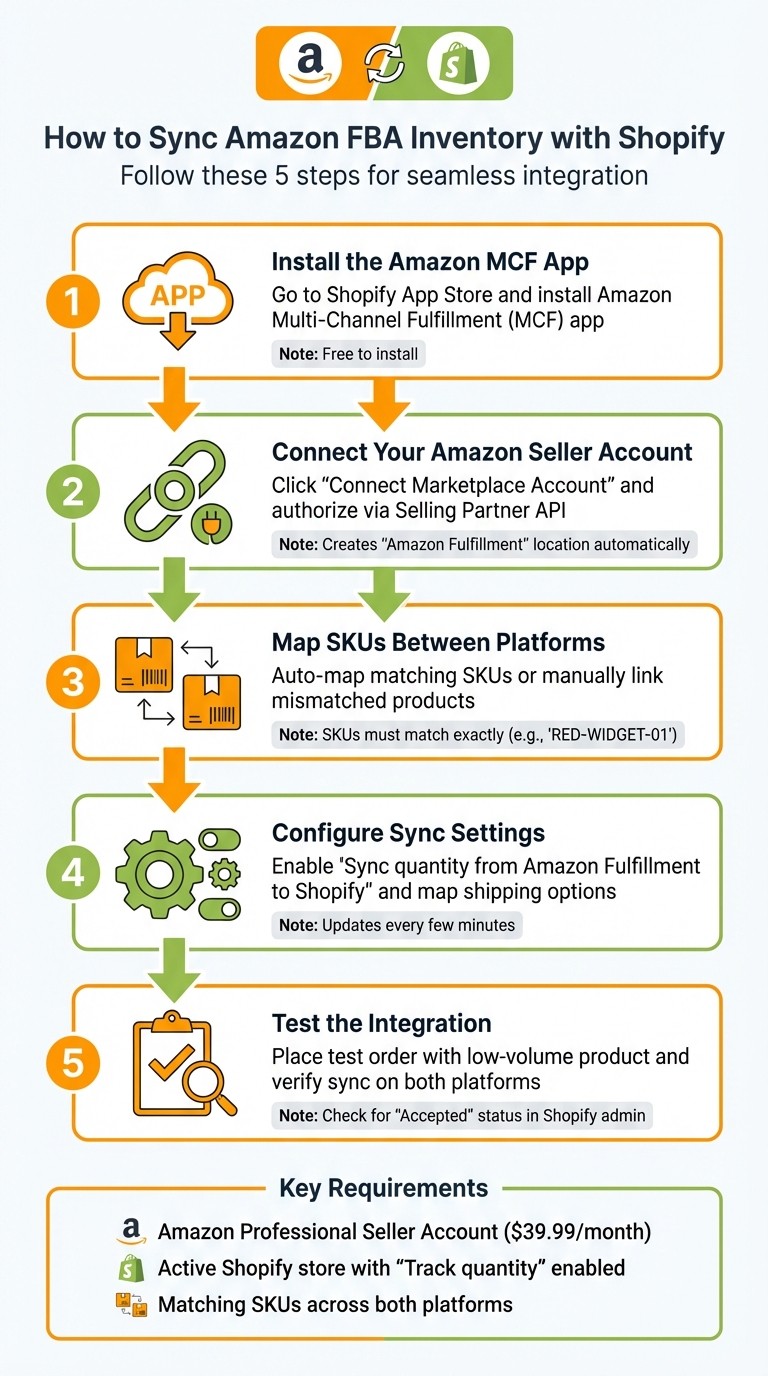
5 Steps to Sync Amazon FBA Inventory with Shopify
How To Setup Amazon Multi-Channel Fulfillment For Shopify

Why You Should Sync Amazon FBA Inventory with Shopify
Syncing your Amazon FBA inventory with Shopify helps avoid costly errors and creates a smoother experience for your customers. When these platforms run separately, it’s like managing two stores that don’t talk to each other. This can lead to selling the same product twice, canceled orders, refund requests, and even a hit to your seller ratings. Let’s break down the main benefits of syncing.
Prevent Overselling Across Platforms
One of the biggest risks of not syncing is overselling - when the same product is sold twice because inventory updates aren’t shared between platforms. Picture this: you have one item left in Amazon’s warehouse, but both your Shopify store and Amazon listing show it as available. If two customers order it at the same time, you’re stuck canceling one of those orders.
"Your Pre-fulfillment Cancel Rate spikes. Do it too often, and you're done." - Top Growth Marketing
Overselling isn’t just frustrating; it’s expensive. Multi-channel sellers can lose an average of $4,200 a month due to canceled orders, refund fees, and damage to their reputation. On Amazon, overselling impacts critical metrics like the Pre-fulfillment Cancel Rate and Order Defect Rate (ODR). Poor performance here can result in losing the Buy Box, having listings removed, or even account suspension.
By syncing your inventory, both platforms update in real time whenever a sale happens. This is especially important during high-traffic events like flash sales, where even a short delay of 5–15 minutes from batch-based sync tools can lead to overselling.
Automate Order Fulfillment
Syncing also enables Amazon Multi-Channel Fulfillment (MCF) for Shopify orders. When a Shopify customer places an order, it’s automatically sent to Amazon’s warehouses for fulfillment. Amazon handles the picking, packing, and shipping without you lifting a finger. Once the order ships, tracking details and delivery updates are instantly sent back to Shopify, keeping your customers informed every step of the way.
This automation not only saves time but also ensures customers receive accurate delivery updates, improving their overall experience.
Improve How You Manage Operations
Automation doesn’t just reduce errors - it can cut inventory management costs by 20%. Instead of spending hours juggling spreadsheets or manually checking stock across platforms, you can focus on growing your business. Whether it’s sourcing new products, refining your listings, or boosting customer service, syncing frees up your time for what really matters.
Additionally, syncing ensures only "Fulfillable" inventory is shown to customers. This means stock that’s reserved, unfulfillable, or still inbound won’t appear as available, eliminating the issue of "ghost inventory." These operational upgrades pave the way for a seamless integration process, which we’ll cover next.
What You Need Before Setting Up Amazon FBA and Shopify Integration
Before you integrate Amazon FBA with Shopify, it’s essential to have the right accounts, accurate product data, and proper settings in place. Missing any of these can lead to sync issues, duplicate listings, or connection errors.
Start by ensuring you have an Amazon Professional Seller Account - the Individual plan won’t cut it. The Professional plan, which costs $39.99 per month, is necessary because it provides access to the Selling Partner API (SP-API). This API is what integration tools use to manage inventory data. On the Shopify side, you’ll need an active store, and make sure the "Track quantity" option is enabled for every product you plan to sync. Without it, Shopify can’t monitor stock levels or send updates.
Your product data also needs to be consistent across both platforms. SKUs must match perfectly - for example, "RED-WIDGET-01" on Amazon should be identical on Shopify. Additionally, make sure each product has a valid identifier like a UPC, EAN, or ISBN, unless Amazon has granted you a GTIN exemption. To double-check, export your product lists from both platforms, then use a spreadsheet tool (like VLOOKUP) to confirm that every SKU aligns before proceeding.
Lastly, decide how each product will be fulfilled - either through FBA (fulfilled by Amazon) or FBM (fulfilled by you). This choice affects which inventory count the sync tool will monitor. For FBA products, only the "Fulfillable" inventory should be tracked, excluding reserved or inbound stock. Setting this up accurately ensures you’re not showing inventory that isn’t actually available for sale.
Once you’ve covered these basics, you’ll be ready to configure your sync settings and move forward without a hitch.
How to Sync Amazon FBA Inventory with Shopify
Once your accounts and product data are ready, follow these steps to integrate and keep your inventory in sync efficiently.
Step 1: Install the Amazon Multi-Channel Fulfillment App
Head to the Shopify App Store, search for, and install the Amazon Multi-Channel Fulfillment (MCF) app. This is Amazon's official integration, and the app is free to install. Click "Add app" and approve the required permissions when prompted. After installation, the app will appear in your Shopify admin sidebar. If you're operating outside the US or UK, you'll need to use approved third-party apps like WebBee or ByteStand to ensure compatibility.
Step 2: Connect Your Amazon Seller Account
In the MCF app dashboard, click "Connect Marketplace Account." You'll be redirected to Amazon Seller Central to log in. Once logged in, authorize the app to access your FBA inventory using the Selling Partner API. After authorization, Shopify will automatically create a fulfillment location called "Amazon Fulfillment" in your store settings. This location will represent your FBA warehouse and help track stock levels for Amazon-fulfilled products.
Step 3: Map SKUs Between Shopify and Amazon
The app will try to auto-map products if your Shopify SKUs match your Amazon SKUs exactly. For any mismatched products, you'll need to map them manually. In the app dashboard, search for the Shopify SKU, then input the corresponding Amazon SKU to link them. Keep in mind that the official app doesn’t support bulk mapping, so each mismatch will need to be handled one at a time.
Step 4: Configure Sync Settings
Enable the "Sync quantity from Amazon Fulfillment to Shopify" option to allow automatic inventory updates. This pulls FBA "fulfillable" inventory data and updates Shopify every few minutes. Next, map your Shopify shipping options (e.g., Standard, Expedited, Priority) to Amazon’s delivery service levels to ensure customers receive accurate delivery times. If you want orders shipped in unbranded packaging, activate the "Blank Box" fulfillment option. Note that blocking Amazon Logistics as a carrier will add a 5% surcharge to your fulfillment fees.
Step 5: Test Syncing and Fulfillment Processes
Start by testing the integration with a single low-volume product. Place a test order in Shopify and confirm that the fulfillment request shows as "Accepted" in your Shopify admin and also appears in your Amazon Seller Central Orders page. Check to see if inventory levels update properly on both platforms after the order is placed. If syncing seems delayed, you can force an update by temporarily changing and then reverting the product’s "Inventory located at" setting - this usually triggers a sync within 5–10 seconds. Once everything checks out, your setup is ready for automated, real-time inventory synchronization across your catalog.
Common Problems and How to Fix Them
After setting up your integration, you might still run into occasional hiccups that need attention. Here's how to handle the most frequent sync issues before they impact your customers.
SKU Mismatches
One of the top reasons for failed syncs is inconsistent SKU naming across platforms. For example, if your Shopify SKU says "YOGA-MAT-BLK" but on Amazon it's listed as "YM-BLACK", the system won’t be able to link them. Even small differences like this can disrupt syncing and hurt your sales.
How to fix it: Start by standardizing your SKUs across all platforms. Perform a reconciliation check every few hours to compare inventory counts and identify any mismatched products. Set up your system to flag unmapped SKUs for review so you can address them quickly instead of letting them fail unnoticed.
API Connection Errors
API connection issues often happen when authentication tokens expire or when you exceed platform rate limits. For instance, Amazon’s Selling Partner API allows about 30 requests per second, while Shopify caps it at 40 requests per second for standard plans. Going over these limits will trigger HTTP 429 errors, stopping your sync in its tracks.
How to fix it: Regularly check your connection status and re-authenticate your Amazon Seller account whenever needed. If you’re hitting rate limits, use a retry queue with exponential backoff - wait 1 second, then 2, then 4, and so on before trying again. Turn on automated alerts in your integration app to get notified immediately if a connection drops. For stores with high order volumes, consider combining real-time webhooks with a reconciliation poll every 5–10 minutes to catch anything that might slip through.
Inventory Sync Delays
During busy times, batch processing delays of 5–15 minutes can lead to overselling. Even a short delay during high order volumes can cause cancellations, which is a big problem - 40% of customers who experience an order cancellation due to overselling won’t shop with that brand again. Each cancellation can cost you $25 to $150 in refunds and customer service.
How to fix it: Switch from scheduled polling to event-driven sync with webhooks, so updates happen immediately after a sale. Use inventory buffers by holding back 5–15% of your stock on marketplaces to give yourself a cushion against sync delays. Make sure your integration pulls only "Fulfillable" inventory from Amazon FBA, as "Total" inventory might include units that are reserved or in transit. For your best-selling products, prioritize their updates during peak traffic times. These steps can help you avoid overselling and keep your automation running smoothly.
Advanced Tips for Better Amazon FBA and Shopify Integration
Once you’ve set up your basic integration and tackled common issues, there are advanced strategies that can take your inventory management to the next level.
Setting Shopify as the Master Inventory Source
Using Shopify as your primary inventory source simplifies stock management and avoids conflicts. By integrating an OMS (Order Management System) or ERP (Enterprise Resource Planning) tool, you can apply inventory rules before updates are sent to Amazon. This setup ensures that when a sale happens on Shopify, the inventory is updated immediately on Amazon - keeping everything in sync.
"Never use a marketplace (like Amazon) as your source of truth. Marketplace inventory APIs have rate limits and delays that make them unreliable as central systems." – OrderSync Pro
During setup, make sure your SKUs are properly aligned across platforms. Use event-driven webhooks for real-time updates and focus on syncing only the "Fulfillable" quantity from Amazon FBA to Shopify. Avoid including categories like "Reserved", "Inbound", or "Unfulfillable", as these don’t represent stock ready for sale.
For stores handling high sales volumes, consider adding a buffer. For example, if Shopify inventory drops to 5 units, set Amazon’s stock to 0. This minimizes the risk of overselling during flash sales or busy periods. Before activating any new configuration, test it in "Shadow Mode" for 7–14 days. This allows you to monitor changes without affecting live inventory, helping you identify and fix potential issues early.
Once you’ve refined your setup, you can take things a step further by using Amazon’s Multi-Channel Fulfillment for Shopify orders.
Using Multi-Channel Fulfillment for Shopify Orders
Amazon’s Multi-Channel Fulfillment (MCF) offers a way to speed up delivery for Shopify orders by leveraging FBA warehouses. For some retailers, this can cut delivery times by up to 50%. The Amazon MCF app for Shopify is free to install, though fulfillment fees apply per order. One major perk? MCF uses unbranded packaging, so your Shopify customers won’t receive orders in Amazon-branded boxes - helping you maintain your brand identity.
To make the most of MCF, configure your settings to exclude Amazon Logistics if necessary. Ensure your integration pulls data from "Available" inventory rather than "Total" inventory, which might include items tied up in pending orders or transfers. Start small - test the system with a low-volume SKU before rolling it out across your full catalog. Automated inventory syncing can significantly reduce overselling, with some sellers seeing rates drop from 8% to just 0.2%. This is a big deal, considering overselling can cost multi-channel sellers around $4,200 per month in refunds and canceled orders.
Monitoring Overselling Risks During High Demand
High-demand periods, like Black Friday or major product launches, can wreak havoc on inventory systems. 70% of businesses report losing customers due to stockouts, and even a short delay of 5–15 minutes in processing can lead to cancellations costing between $25 and $150 each.
To manage this risk, set safety buffers by holding back 5–10% of your stock. Perform daily reconciliations to catch and correct discrepancies. For your top-selling products, prioritize their updates during peak times. If you sell bundles on Shopify, use bundle cascading to automatically adjust the inventory of individual components on Amazon whenever a bundle is sold. These measures help keep your system running smoothly, even when demand surges.
Wrapping Up
Syncing your Amazon FBA inventory with Shopify can completely change how you manage multi-channel operations. It eliminates sync delays, helps prevent overselling, and reduces cancellation costs - all thanks to instant automation. These improvements address the risks we discussed earlier, ensuring smoother and more reliable operations across channels.
With real-time automation, your inventory updates instantly, minimizing cancellations and refunds - especially critical for sales with tight profit margins.
"Sync is not a feature. It is the foundation." – Nventory US
The strategies outlined here, from accurate SKU mapping to using safety buffers during peak demand, work together to create a seamless, automated inventory system. This means you can spend less time worrying about stock levels and more time focusing on expanding your business.
To get started, utilize Shopify design and development services to install the integration tool, map your SKUs carefully, and thoroughly test your setup. Once that’s in place, you can implement advanced strategies to create a system that grows with your business.
FAQs
Can I sync Shopify with Amazon FBA using an Individual seller plan?
Yes, you can sync Shopify with Amazon FBA, but whether it works with an Individual seller plan depends on the tools or apps you choose. Many third-party apps, such as Connectr or Shopify Marketplace Connect, provide inventory syncing options. However, these apps often require a paid subscription. Keep in mind that Individual seller plans might not support some advanced features, so it's important to review the app's requirements to confirm compatibility with your plan.
How do I handle products with different SKUs on Amazon and Shopify?
To handle products with varying SKUs on Amazon and Shopify, it’s crucial to ensure the SKUs match exactly when setting up inventory synchronization. This alignment helps avoid stock discrepancies and the risk of overselling. Since Shopify doesn’t provide built-in real-time syncing with Amazon, consider using inventory management tools designed for SKU mapping and synchronization. Additionally, make it a habit to review SKU consistency across both platforms to keep stock levels accurate and order fulfillment smooth.
What should I do if inventory updates are delayed and I risk overselling?
To prevent overselling caused by delayed inventory updates, consider using real-time or near-real-time synchronization tools to keep your stock levels up to date. Automated systems that consolidate all sales channels into a unified inventory pool can make this process smoother. You can also set buffer stock levels or manually tweak inventory numbers during delays to avoid selling items that are no longer available. Having a single source of truth for inventory management ensures that updates remain consistent across all platforms.